
WordPress powers websites ranging from personal blogs and business websites to complex eCommerce platforms. Its flexibility makes it a popular choice, but every website still needs a security strategy to protect its content, users, data, and reputation.
Securing WordPress involves more than installing a security plugin. Your website depends on several connected layers, including WordPress core, themes, plugins, administrator accounts, hosting configuration, databases, backups, and network security.
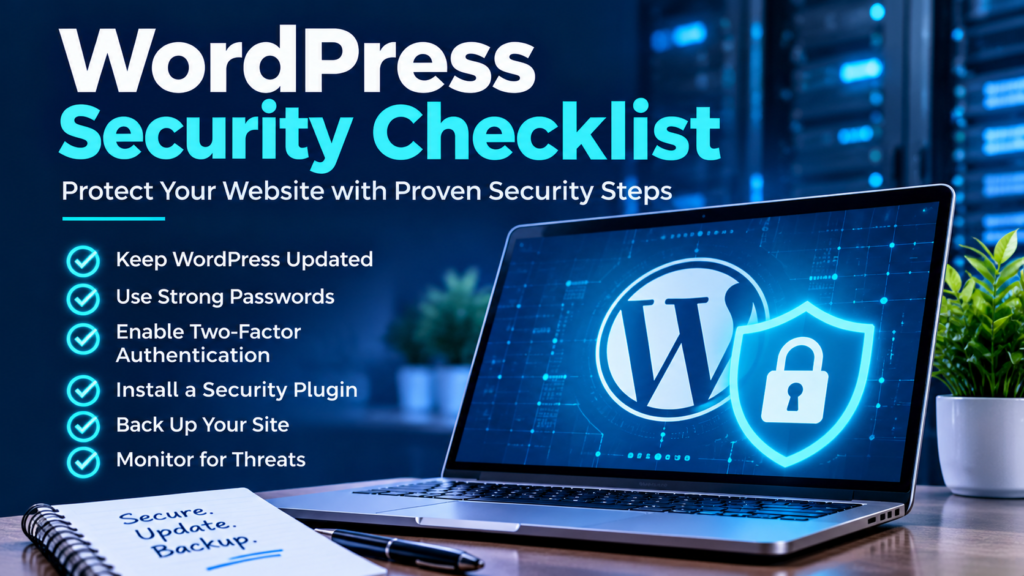
This WordPress security checklist provides a practical framework for reducing common risks, maintaining a secure website, and preparing for recovery if something goes wrong.
Whether you manage a small business website or a WordPress installation on a cloud server, use these steps to review your current setup and identify areas that need attention.
1. Keep WordPress Core, Themes, and Plugins Updated
Outdated software is one of the security risks website owners can often address directly. Updates may include security fixes, compatibility improvements, and bug corrections.
Review the following regularly:
- Update WordPress core to a supported, secure release.
- Keep active themes and plugins updated.
- Remove inactive themes and plugins that are no longer needed.
- Check for abandoned plugins or themes that no longer receive appropriate maintenance.
- Review security advisories when a vulnerability affects software you use.
- Test important updates on a staging environment when practical.
Do not assume that an inactive plugin is harmless simply because it is not being used. Unneeded software increases maintenance overhead, and vulnerable components may still create risk.
Before major updates, make sure you have a usable backup. For business-critical websites, use a controlled deployment process rather than applying untested changes directly to production.
Checklist:
- [ ] WordPress core is supported and up to date.
- [ ] Active plugins and themes are maintained.
- [ ] Unused extensions have been reviewed and removed where appropriate.
- [ ] Important updates are tested before production deployment when feasible.
2. Secure Administrator Accounts
An administrator account can change site settings, install plugins, manage users, and potentially expose sensitive information. Protecting these accounts is one of the most important parts of WordPress security.
Use strong, unique passwords
Every administrator should use a strong password that is not reused on other websites. A reputable password manager can help generate and store unique credentials securely.
Enable multi-factor authentication
Where supported, enable multi-factor authentication (MFA) for administrator accounts and other high-privilege users. MFA adds another verification step beyond a password and can reduce the risk of unauthorized access if a password is stolen.
Review user roles and permissions
Give each user only the permissions required for their work. Not every contributor, editor, contractor, or marketing team member needs administrator access.
- Remove accounts that no longer require access.
- Review administrator accounts periodically.
- Use individual accounts rather than sharing one administrator login.
- Confirm that former staff and contractors no longer have access.
- Investigate unfamiliar accounts or unexpected privilege changes.
Protect account recovery
Secure the email accounts associated with WordPress administrators. If someone gains access to an administrator’s email account, they may be able to reset the WordPress password.
Checklist:
- [ ] Administrator passwords are strong and unique.
- [ ] MFA is enabled where available.
- [ ] User roles follow the principle of least privilege.
- [ ] Unnecessary or unfamiliar accounts are removed after investigation.
- [ ] Administrator email accounts are protected.
3. Install and Configure a Suitable Security Solution
A WordPress security plugin can provide useful controls, but no plugin protects every layer of a website. Choose a solution based on your existing hosting and network security rather than installing several plugins that duplicate the same functions.
Depending on the website and infrastructure, useful capabilities may include:
- Login protection and brute-force defenses.
- Suspicious activity logging and notifications.
- File integrity monitoring.
- Security scanning.
- Access controls and rate limiting.
- Integration with an appropriate firewall or threat-detection service.
WP Cerber and Wordfence are examples of WordPress-focused security solutions worth evaluating. Their features, pricing, and compatibility differ, so verify current documentation before choosing one.
Do not automatically enable every available security setting. Aggressive rules may interfere with legitimate logins, REST API requests, form submissions, payment processing, or other integrations.
Checklist:
- [ ] The website has a defined security strategy.
- [ ] Security notifications are configured appropriately.
- [ ] Login protection is enabled where suitable.
- [ ] Firewall and scanning features do not conflict with existing infrastructure.
- [ ] Security logs can be reviewed when suspicious activity occurs.
4. Use HTTPS and Maintain Valid SSL/TLS Certificates
HTTPS encrypts data exchanged between a visitor’s browser and your website. It helps protect information in transit and is essential for modern websites, particularly those that handle logins, contact forms, customer details, or payments.
Verify that:
- Your SSL/TLS certificate is valid and has not expired.
- The certificate covers the domain names visitors actually use.
- HTTP requests redirect to the correct HTTPS URL.
- WordPress Address and Site Address use HTTPS when appropriate.
- Pages do not load important resources over insecure HTTP connections.
- Renewal is automated or there is a reliable process to prevent expiration.
Installing a certificate alone does not guarantee that the entire website is configured correctly. Review redirects, certificate coverage, mixed-content warnings, and any CDN or reverse-proxy configuration.
If your website sits behind a service such as CloudFront, make sure TLS is configured correctly between visitors, the CDN, and the origin server according to your architecture.
Checklist:
- [ ] HTTPS works for the main domain and relevant subdomains.
- [ ] The certificate is valid and renewals are monitored.
- [ ] HTTP redirects to HTTPS consistently.
- [ ] No important mixed-content issues remain.
- [ ] CDN and origin TLS settings are correct when applicable.
5. Create and Test Backups
Security controls reduce risk, but they cannot guarantee that an incident will never occur. Backups provide a recovery option after a compromise, accidental deletion, failed update, or infrastructure problem.
A complete backup strategy should account for:
- The WordPress database.
- Uploaded media and other required files.
- WordPress configuration and custom code.
- Theme and plugin files, where needed for restoration.
- Relevant deployment or infrastructure configuration.
Store backups separately
Whenever practical, keep backups in a separate storage location with access controls. If every backup resides on the same compromised server, an attacker or infrastructure failure may affect both the website and its recovery copies.
Choose an appropriate backup schedule
Backup frequency should reflect how often the website changes and how much data you can afford to lose. A site accepting orders or customer submissions may need a different schedule from a small informational website.
Test restoration
A successful backup job does not prove that the backup can be restored. Periodically restore a copy in a staging or isolated environment and verify that the database, media, logins, and important site functions work.
Checklist:
- [ ] Database and required files are backed up.
- [ ] Backups are stored separately from the production server when practical.
- [ ] Backup frequency matches the website’s change rate.
- [ ] Retention and access controls are defined.
- [ ] Restoration has been tested.
6. Harden WordPress Configuration and File Permissions
WordPress configuration and file permissions influence what users and processes can change. Incorrect permissions or exposed configuration files can create unnecessary security risks.
Protect configuration files
The wp-config.php file contains important configuration details, including database connection settings. Restrict access to it using appropriate server permissions and hosting configuration.
Do not publish configuration files, database credentials, secret keys, API tokens, or other sensitive values in public repositories, support forums, or unsecured backups.
Use appropriate file permissions
File and directory permissions should allow WordPress to function without granting unnecessary write access. Exact values depend on the hosting environment, ownership model, deployment process, and whether updates are performed through WordPress or by administrators.
Avoid blindly applying one set of permission values to every server. Incorrect ownership or permissions can break updates or expose writable files.
Disable dashboard file editing where appropriate
WordPress includes a built-in editor for some theme and plugin files. Disabling dashboard file editing can reduce the ability to modify code through a compromised administrator session.
For sites that manage code through version control or controlled deployments, consider adding the following to wp-config.php:
define( 'DISALLOW_FILE_EDIT', true );Add the setting only once and confirm that it does not conflict with your existing configuration. This disables the built-in theme and plugin editors; it does not replace server access controls or prevent every method of changing files.
Protect sensitive files from public access
Review web-server rules to ensure that sensitive backups, logs, configuration exports, and development files cannot be downloaded publicly. Do not rely on an obscure filename as a security control.
Checklist:
- [ ] Configuration files and credentials are protected.
- [ ] File ownership and permissions are appropriate for the server.
- [ ] Dashboard code editing is disabled where suitable.
- [ ] Sensitive backup and development files are not publicly accessible.
- [ ] Configuration changes are documented and tested.
7. Protect the Hosting Server and Database
WordPress security depends on the server beneath it. A secure WordPress dashboard cannot compensate for an exposed administration service, weak server credentials, an outdated operating system, or a publicly accessible database.
For managed hosting, review the provider’s security features and responsibilities. For a self-managed VPS or cloud server, additional administration is required.
For VPS and cloud-hosted WordPress websites
- Keep the operating system, PHP runtime, web server, and database software on supported versions.
- Restrict SSH and administrative access to trusted users and appropriate networks.
- Use key-based SSH authentication where appropriate and protect private keys.
- Apply firewall rules that expose only necessary services.
- Keep database services private unless public access is explicitly required and secured.
- Use separate, appropriately privileged database credentials for applications.
- Monitor available disk space, CPU, memory, logs, and unusual service activity.
- Protect secrets in deployment tools and environment configuration.
For AWS-hosted WordPress, review security groups, IAM permissions, instance access, database network exposure, backup policies, and any CDN or web application firewall rules. Restrict access according to actual application requirements instead of opening ports broadly.
Do not assume that a web application firewall blocks every malicious request. Application-level vulnerabilities, stolen credentials, and unsafe administrative changes may still require other controls.
Checklist:
- [ ] Server and database software are maintained.
- [ ] Administrative services are restricted.
- [ ] Database access is limited to authorized systems.
- [ ] Firewall rules follow least-privilege principles.
- [ ] Infrastructure backups and monitoring are in place.
8. Reduce Login and Automated Attack Exposure
Automated systems frequently probe public websites for vulnerable software, exposed endpoints, weak credentials, and common login paths. Not every suspicious request indicates a successful attack, but sensible controls can reduce exposure.
Consider the following measures:
- Use strong passwords and MFA for privileged accounts.
- Apply rate limits or login protection where appropriate.
- Monitor repeated failed logins and suspicious account activity.
- Disable public registration if your website does not need it.
- Review XML-RPC access if your site does not depend on it.
- Use firewall rules carefully to reduce abusive traffic.
Changing the default login URL is not a substitute for strong authentication. Likewise, disabling XML-RPC without checking integrations may break applications or services that rely on it.
Before blocking an endpoint, confirm whether your website uses it. Prefer controls that address the underlying risk without unnecessarily disrupting legitimate functionality.
Checklist:
- [ ] Login attempts are protected and monitored.
- [ ] Unneeded registration features are disabled.
- [ ] XML-RPC access has been reviewed against actual requirements.
- [ ] Rate limits and firewall rules have been tested.
9. Review Plugins, Themes, and Third-Party Integrations
Every plugin and theme adds functionality, but it can also introduce code, dependencies, permissions, and maintenance requirements.
Before installing an extension:
- Check whether it is actively maintained.
- Review compatibility with your WordPress and PHP versions.
- Confirm that it comes from a trustworthy source.
- Review its permissions, external connections, and data handling where relevant.
- Check for known vulnerabilities and available fixes.
- Test it before deploying to a production website.
Be cautious with unofficial plugin downloads, modified premium packages from untrusted sources, and extensions that request unnecessary privileges.
Review integrations as well. Email services, payment providers, form tools, analytics platforms, and API connections may each use credentials or tokens that need appropriate protection.
Checklist:
- [ ] Plugins and themes come from trusted sources.
- [ ] Unmaintained or vulnerable extensions have been assessed.
- [ ] Unused integrations and API credentials are removed or revoked.
- [ ] Third-party access is limited to what each integration needs.
10. Monitor Logs, Alerts, and Unexpected Changes
Security monitoring helps you identify unusual activity and investigate incidents. Useful signals may include unfamiliar administrator accounts, unexpected file changes, repeated authentication failures, suspicious redirects, or sudden changes in server resource usage.
Depending on your environment, monitoring may include:
- WordPress security logs.
- Web-server access and error logs.
- Authentication and system logs.
- Cloud firewall and application logs.
- Alerts for critical software updates or known vulnerabilities.
- Notifications for backup failures and certificate expiration.
Monitoring should be proportionate to your site’s importance and risk. A small business site may need a simpler setup than an online store handling sensitive customer data, but every site should have a way to detect and investigate serious problems.
Logs may contain IP addresses, usernames, or other sensitive information. Restrict access and retention according to your operational and privacy requirements.
Checklist:
- [ ] Important security events can be reviewed.
- [ ] Critical alerts reach someone responsible for the site.
- [ ] Backup failures and certificate expiry are monitored.
- [ ] Unexpected accounts, files, and redirects are investigated.
- [ ] Logs are protected against unauthorized access.
11. Prepare an Incident Response Plan
Even a well-maintained website can be compromised. Preparing a response plan before an incident reduces confusion and helps prevent rushed decisions that could destroy useful evidence or leave the vulnerability unresolved.
If you suspect a compromise:
- Assess the situation. Record what you observed, when it began, and which systems may be affected.
- Contain the incident. Restrict affected access or isolate compromised systems where appropriate, while considering the impact on legitimate users.
- Protect evidence. Preserve relevant logs and records when possible, especially if the incident may require a detailed investigation.
- Secure credentials. From a trusted device, rotate affected passwords, API tokens, and other credentials. Revoke unauthorized sessions and access.
- Identify the entry point. Investigate vulnerable software, compromised accounts, exposed credentials, or server misconfiguration.
- Remove the cause. Update or remove vulnerable components, correct configuration problems, and eliminate unauthorized code or accounts.
- Restore safely. If restoration is necessary, use a known-good backup after addressing the underlying vulnerability.
- Verify recovery. Test core website functions, review logs, and monitor for signs of reinfection or renewed unauthorized activity.
If the incident affects customer information, payment data, or other regulated information, assess applicable notification obligations and seek qualified incident-response or legal assistance where necessary.
Simply deleting suspicious files is not always sufficient. Attackers may have created additional accounts, modified other files, stolen credentials, or left another method of access.
Checklist:
- [ ] A responsible contact is identified.
- [ ] Backup restoration procedures are documented.
- [ ] Credential revocation and rotation procedures are available.
- [ ] Logs and incident records can be preserved.
- [ ] Recovery includes fixing the original vulnerability.
12. WordPress Security Checklist: Quick Review
Use this consolidated checklist for a periodic review of your website’s security posture.
WordPress software
- [ ] WordPress core is supported and updated.
- [ ] Plugins and themes are maintained and reviewed.
- [ ] Unused or vulnerable extensions are removed or replaced.
Users and authentication
- [ ] Administrator passwords are unique and strong.
- [ ] MFA is enabled for privileged accounts where available.
- [ ] User roles and administrator accounts are reviewed.
- [ ] Login protection and suspicious-activity monitoring are configured.
Website and server configuration
- [ ] HTTPS and certificate renewal are working correctly.
- [ ] Configuration files and sensitive credentials are protected.
- [ ] File permissions and ownership are appropriate.
- [ ] Server access and database exposure are restricted.
- [ ] Firewall and CDN rules match the site’s actual requirements.
Backups and recovery
- [ ] Required files and the database are backed up.
- [ ] Backups are protected and stored separately when practical.
- [ ] Restoration has been tested.
- [ ] An incident response process is documented.
Monitoring and maintenance
- [ ] Security logs and important alerts are available.
- [ ] Vulnerability advisories are reviewed when relevant.
- [ ] Third-party integrations and credentials are reviewed.
- [ ] Security checks are repeated on a defined schedule.
Frequently Asked Questions
Is WordPress secure enough for a business website?
WordPress can be used for business websites when it is properly maintained and configured. Security depends on the complete environment, including software updates, account protection, hosting, backups, and how the website is operated.
Do I need a WordPress security plugin?
A security plugin can provide useful protections and monitoring, but the best choice depends on your existing infrastructure. It should complement—not replace—secure hosting, updates, strong authentication, access controls, and tested backups.
How often should I back up my WordPress website?
Choose a schedule based on how frequently your content and database change and how much data you can afford to lose. Websites with orders, bookings, or frequent user submissions generally need more frequent protection than static informational websites. Test restoration regularly.
Is changing the WordPress login URL enough to prevent attacks?
No. Changing the login URL may reduce some automated noise, but it does not replace strong passwords, MFA, appropriate rate limiting, updates, or account monitoring.
Can a firewall replace WordPress security measures?
No single control covers every risk. A firewall can help filter unwanted traffic, but compromised accounts, vulnerable plugins, insecure server configuration, and unsafe administrative actions may require additional protections.
What should I do if my WordPress website is hacked?
Contain the incident, preserve relevant evidence, secure affected credentials, investigate the entry point, remove unauthorized access, fix the underlying vulnerability, and restore from a known-good backup if needed. Verify the website’s integrity before returning it to normal operation.
Final Thoughts
WordPress security is an ongoing process, not a one-time plugin installation. A secure website combines maintained software, strong authentication, appropriate permissions, protected infrastructure, reliable backups, and a plan for responding to incidents.
Start by addressing the fundamentals in this checklist, then prioritize improvements according to your website’s purpose, data, hosting environment, and risk level.
For a broader look at the relationship between security, hosting, caching, and website performance, read The Complete Guide to Building a High-Performance WordPress Website (2026).
You can also read Essential WordPress Plugins I Actually Recommend to learn how to choose useful WordPress tools without adding unnecessary complexity.
Security recommendations should be adapted to your hosting environment and operational requirements. Test configuration changes before deploying them to a production website.